App Settings
A walkthrough of the Hyperborea app's configuration screens.
Quick Settings
Tap the gear icon (⚙️) in the top-right corner of the dashboard to open the Quick Settings panel.
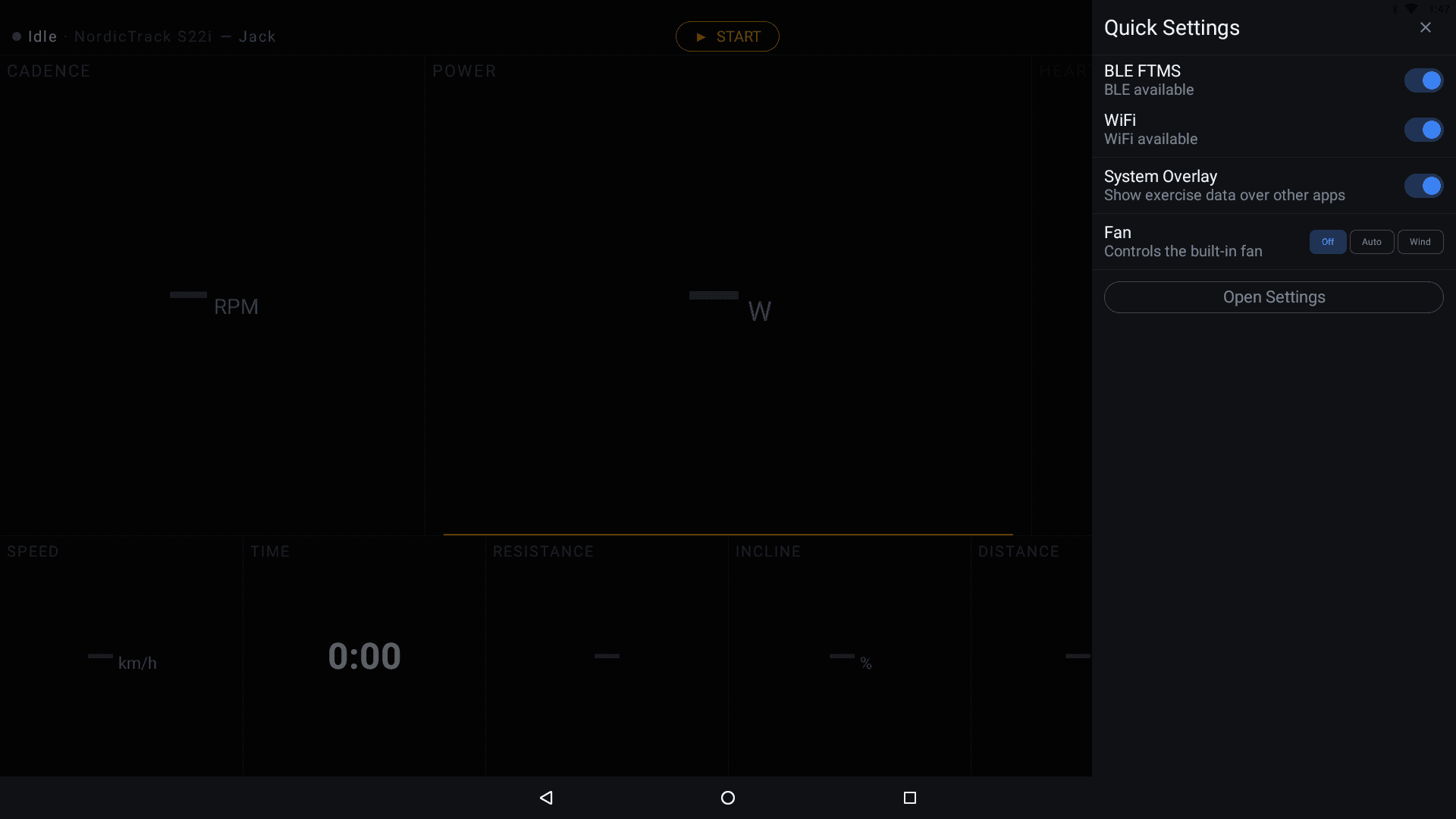
The Quick Settings panel provides quick toggles for:
- BLE FTMS — enable or disable Bluetooth FTMS broadcasting
- WiFi — enable or disable WiFi broadcasting
- System Overlay — show exercise data over other apps (useful when using iFit or other apps alongside Hyperborea)
- Fan — control the built-in fan with three modes: Off, Auto (speed-based), or Wind (constant)
Tap Open Settings below the toggles to access the full Settings screen.
Settings Screen
The Settings screen has four tabs in the left sidebar: Sensors, Device, System, and About.
Sensors
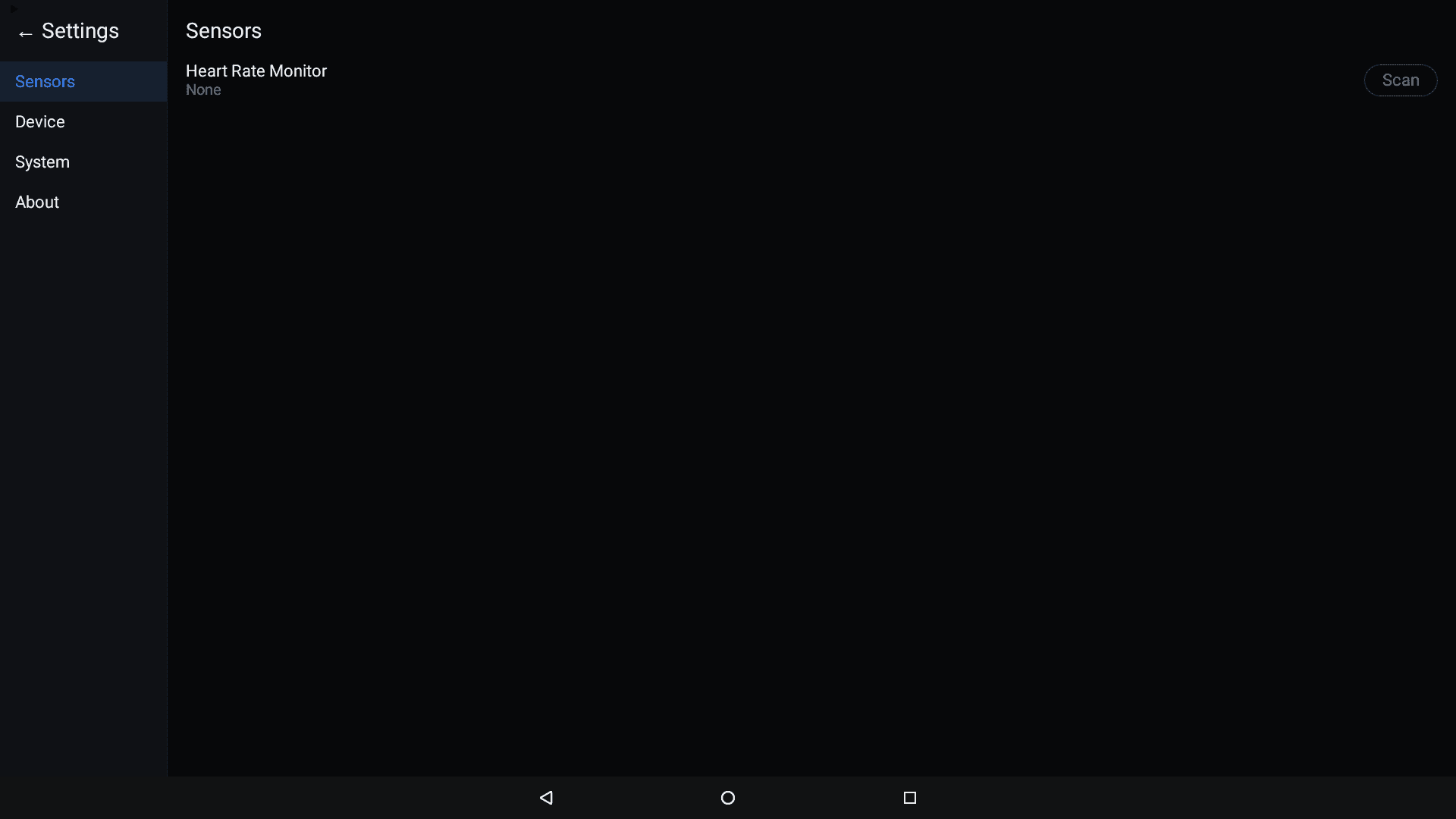
See the Working with Sensors guide for details on heart rate monitor pairing and sensor configuration.
Device
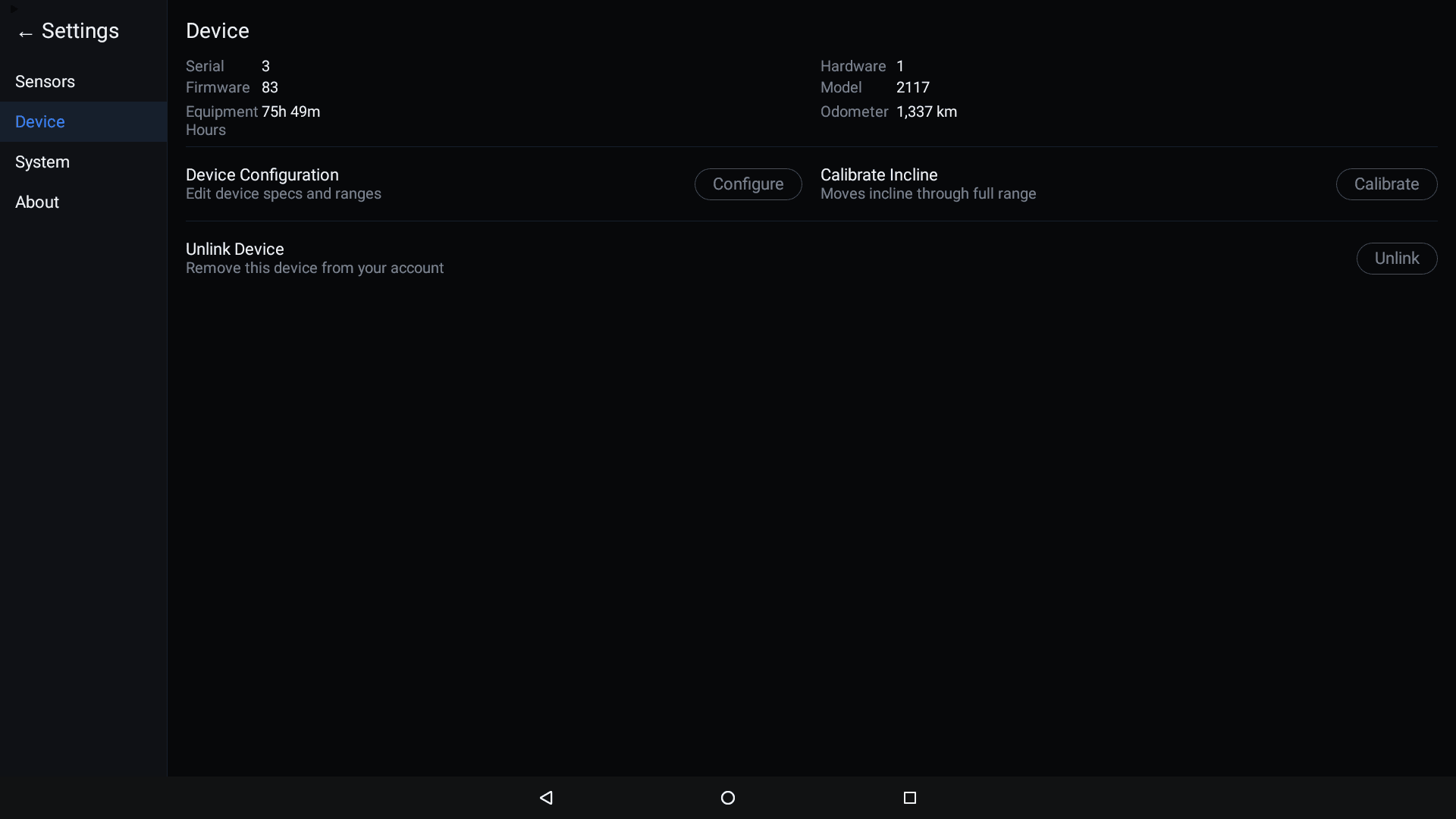
The Device tab shows information about your machine and provides management options.
Device Information
| Field | Description |
|---|---|
| Serial | Machine serial number |
| Firmware | Firmware version |
| Equipment Hours | Total usage time |
| Hardware | Hardware revision |
| Model | Model number |
| Odometer | Total distance traveled |
Device Configuration
Tap Configure to open the Device Configuration screen, where you can customize how Hyperborea presents your machine to fitness apps.
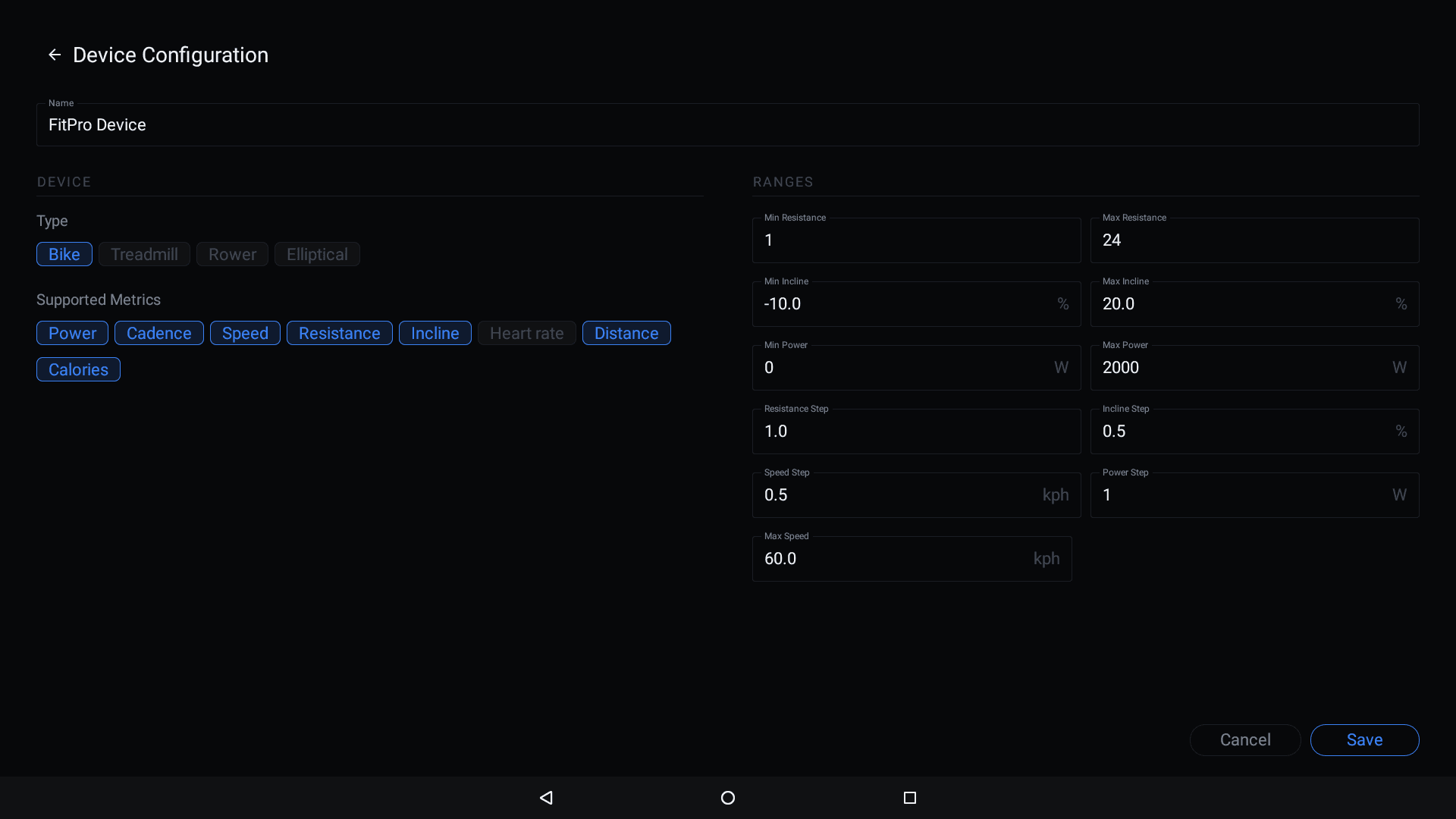
The Device Configuration screen has the following settings:
- Name — the Bluetooth name that fitness apps see when scanning (e.g. "FitPro Device")
- Type — choose which FTMS profile your machine advertises: Bike, Treadmill, Rower, or Elliptical
- Supported Metrics — toggle which metrics are broadcast to fitness apps: Power, Cadence, Speed, Resistance, Incline, Heart rate, Distance, Calories
- Ranges — configure the min/max values and step sizes for resistance, incline, power, speed, and other metrics. These tell fitness apps the capabilities of your machine
A Reset to Defaults button appears in the header when any settings have been customized.
Tap Save to apply changes or Cancel to discard them.
Calibrate Incline
Tap Calibrate to run an incline calibration. The machine will move through its full range of motion to determine its incline limits.
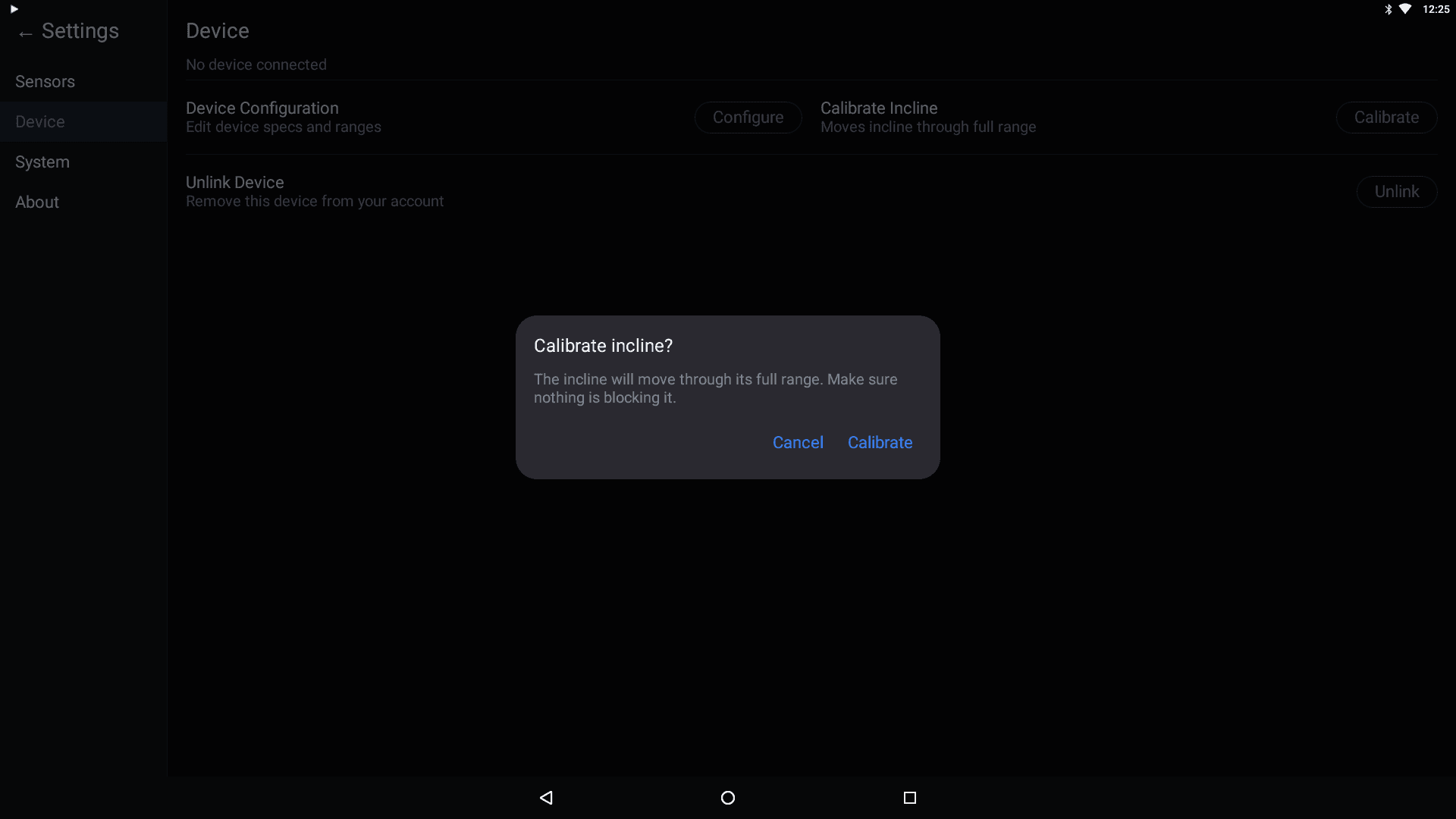
Warning: Make sure nothing is blocking the machine before calibrating. The incline will move through its full range.
Unlink Device
Tap Unlink to disconnect your machine from your Hyperborea account. See How to Unlink a Device for full instructions.
System
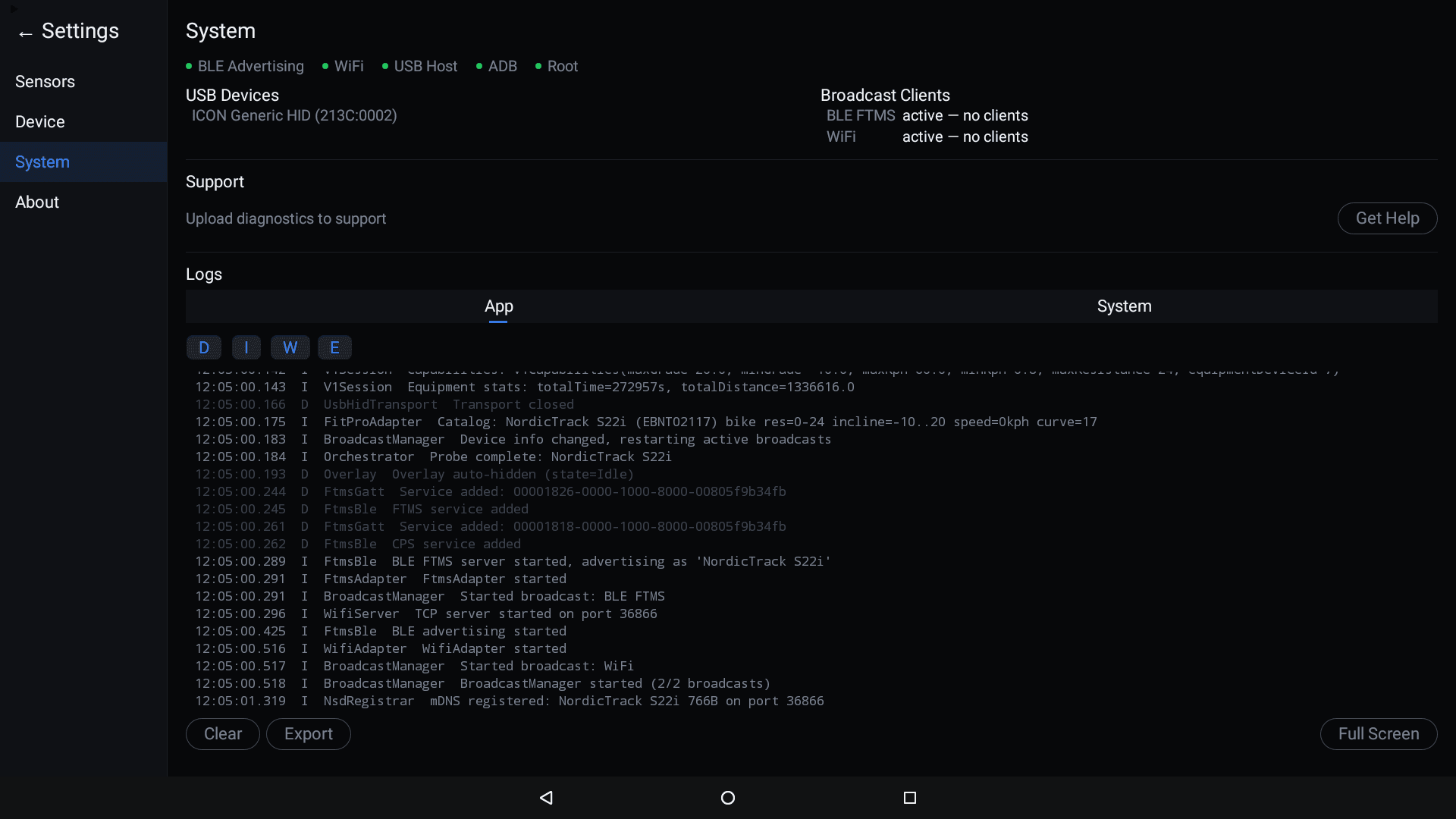
The System tab shows network status, connected clients, and diagnostic logs.
Status Indicators
The top of the System screen shows the status of key interfaces:
- BLE Advertising — whether Bluetooth is advertising
- WiFi — WiFi connection status
- USB Host — USB host controller status
- ADB — Android Debug Bridge status
- Root — root access status
USB Devices
Lists any USB devices connected to the console (e.g. USB HID devices).
Broadcast Clients
Shows the current state of active broadcast connections:
- BLE FTMS — Bluetooth FTMS client status and count
- WiFi — WiFi client status and count
Support
- Upload diagnostics to support — sends diagnostic data to help troubleshoot issues
- Get Help — prompts "Send diagnostics?" for confirmation, then uploads device info and logs. On success, displays a support code to share in Discord. If the upload fails, an error is shown with a retry option.
Logs
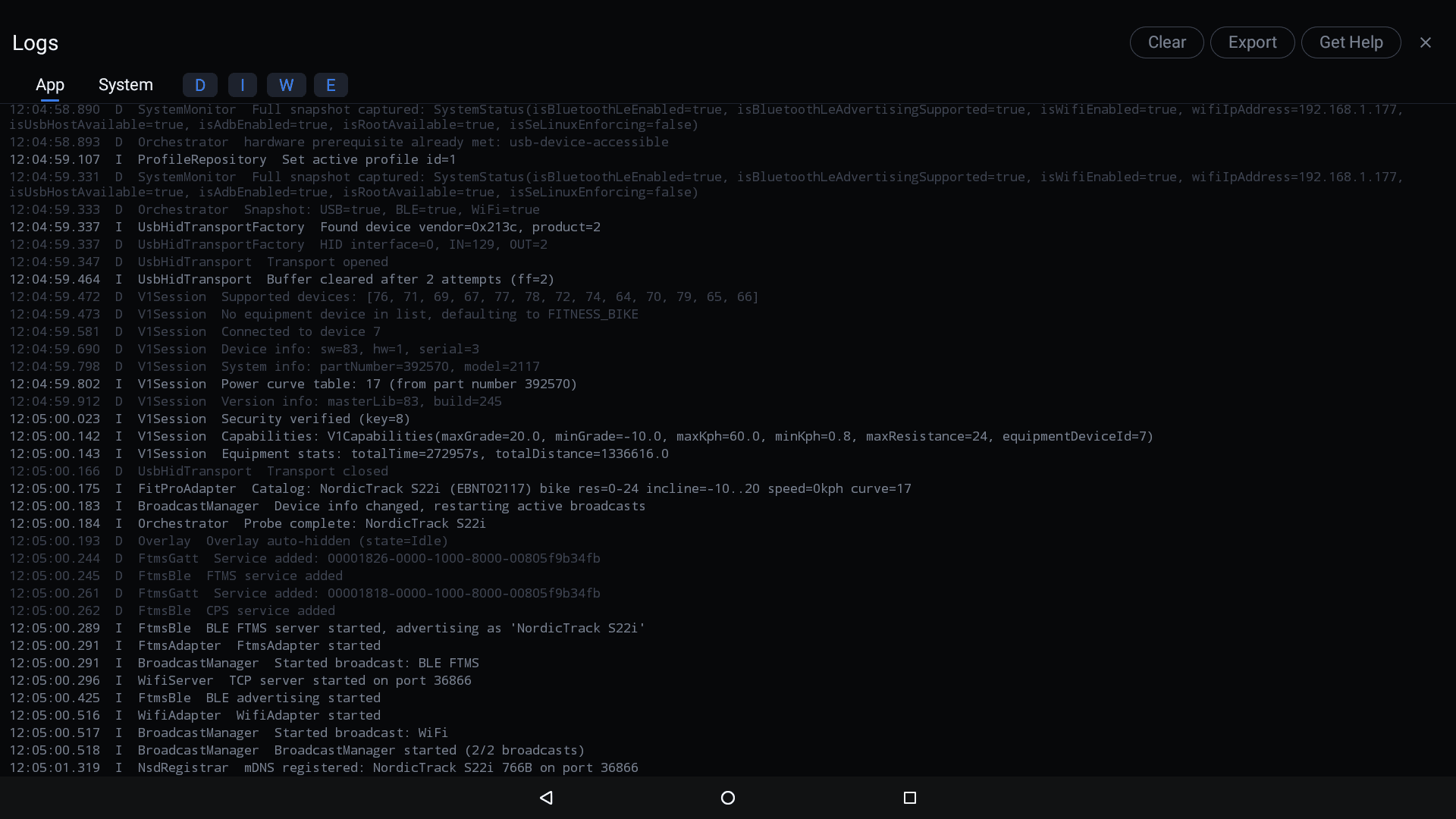
The Logs panel shows real-time app and system logs with App and System tabs. Filter chips — D (Debug), I (Info), W (Warning), E (Error) — let you filter entries by log level.
- Clear — clear the current log view
- Export — export logs to a file
- Full Screen — expand the log viewer to full screen
About
The About tab shows the app version and provides an update check.
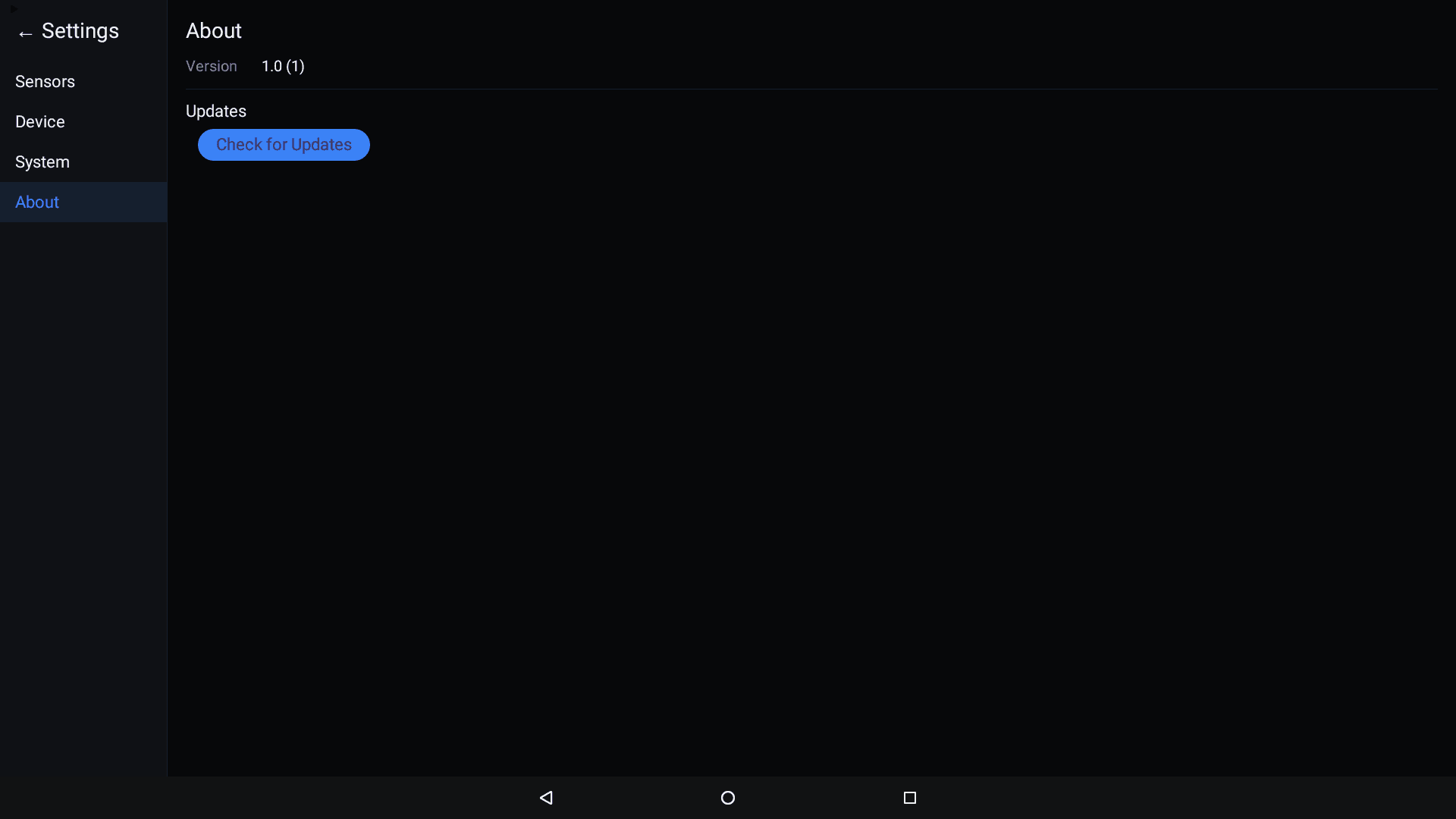
- Version — the currently installed version number and build code
- Check for Updates — manually check for and install app updates