Working with Sensors
A guide to the sensor data Hyperborea reads from your machine and how to pair an external heart rate monitor.
Available Sensors
Hyperborea reads the following data from your machine's console, depending on the model:
| Sensor | Unit | Description |
|---|---|---|
| Power | Watts | Your current power output |
| Cadence | RPM | Pedal or stride rate |
| Speed | km/h or mph | Current speed |
| Resistance | Level | Current resistance setting |
| Incline | % | Incline percentage |
| Heart Rate | BPM | Heart rate (from paired Bluetooth monitor or console grip sensors) |
Not all sensors are available on every machine. Hyperborea displays and broadcasts whatever data your console provides.
Heart Rate Monitor
Hyperborea can pair with a Bluetooth heart rate monitor (such as a chest strap or arm band) to display and broadcast heart rate data alongside your other metrics.
To pair a heart rate monitor:
- Tap the gear icon (⚙️) on the dashboard to open Quick Settings.
- Tap Open Settings below the toggles.
- Select the Sensors tab in the left sidebar.
- Tap Scan next to Heart Rate Monitor.
- Put your heart rate monitor into pairing mode and wait for it to appear in the scan results.
- Select your monitor to pair it.
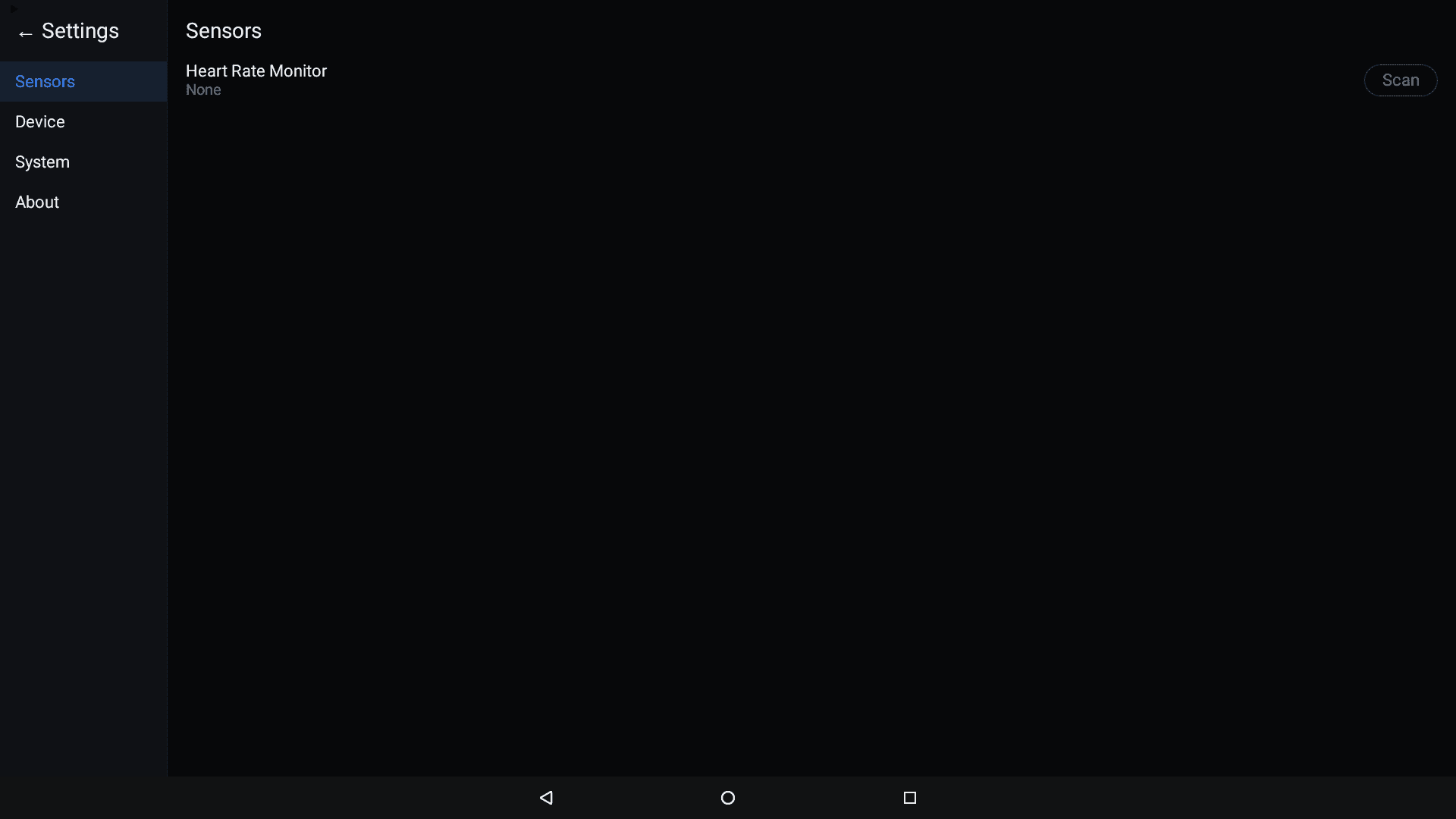
Once paired, the Sensors screen shows your monitor's connection status — Connected (with current BPM), Connecting, Disconnected, or Saved but not connected. Tap Forget to unpair a saved monitor.
Heart rate data will appear on the dashboard and be included in the Bluetooth/WiFi broadcast to your fitness apps.
Choosing Which Metrics to Broadcast
You can control which metrics Hyperborea reports to fitness apps from the Device Configuration screen:
- Go to Settings > Device > Configure.
- Under Supported Metrics, toggle the metrics you want to broadcast: Power, Cadence, Speed, Resistance, Incline, Heart rate, Distance, Calories.
See the Device Configuration section of the Settings guide for more details.
How Sensor Data Flows
- Your machine's console generates raw sensor data
- Hyperborea reads this data from the console's internal interface
- The data is displayed on the Hyperborea dashboard
- Simultaneously, the data is broadcast over Bluetooth (FTMS protocol) and optionally Wi-Fi
- Your fitness app receives the data and uses it for your workout
Data updates happen multiple times per second, so your fitness app sees near-real-time metrics.
Troubleshooting Sensor Issues
See the Sensor Issues section of the Troubleshooting guide for help with missing sensors, inaccurate readings, and heart rate monitor problems.