Your First Workout
A quick walkthrough of your first session with Hyperborea — from choosing a profile to saving your ride.
Setting Up Your Profile
When you open the Hyperborea app for the first time, you'll be prompted to create a profile. Tap Edit Profile to fill in your details.
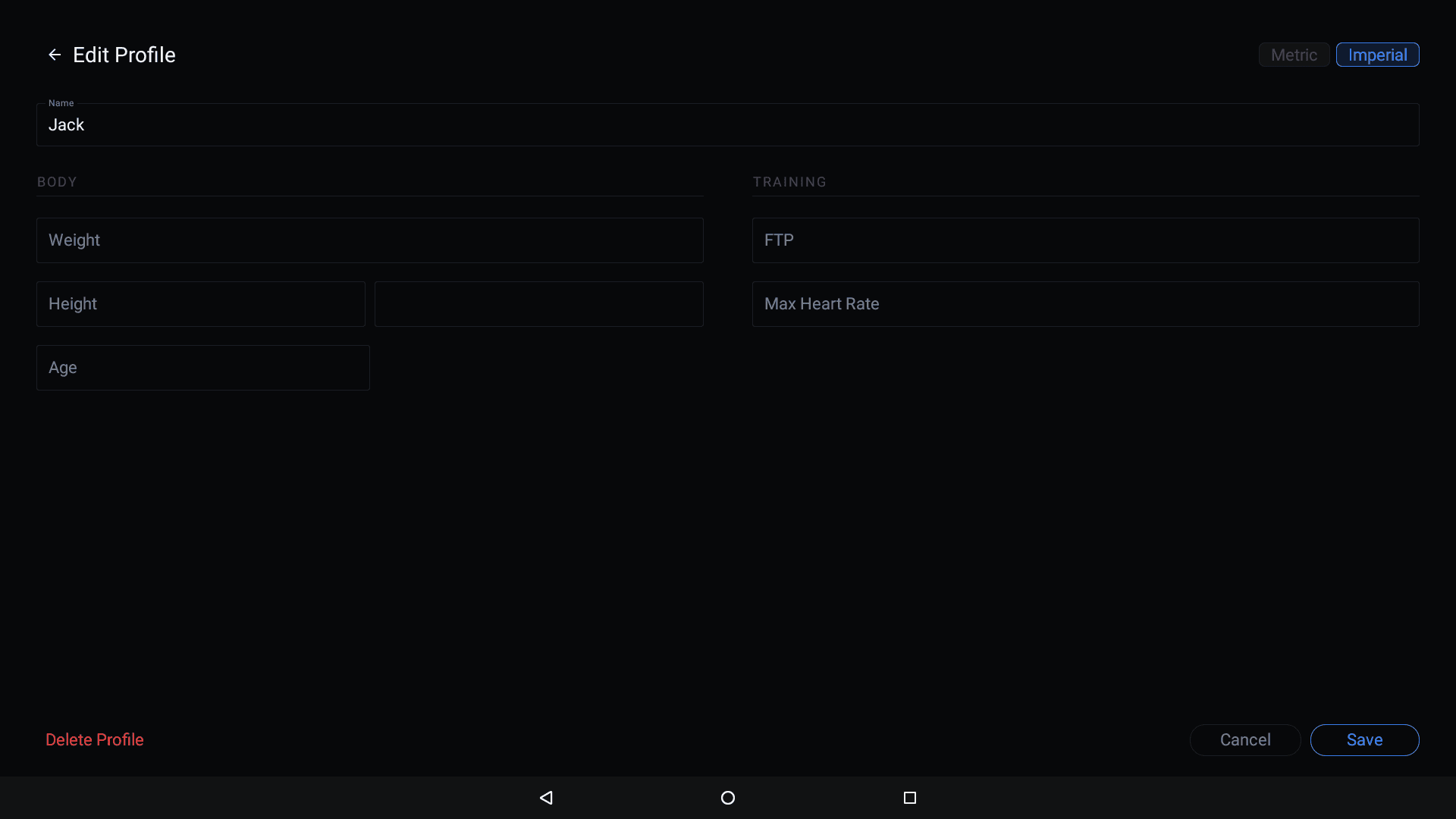
- Name — your display name, shown on the dashboard and in ride history
- Weight and Height — used to calculate calories burned and watts per kilogram (W/kg)
- Age — used in calorie estimation
- FTP (Functional Threshold Power) — if you know your FTP, enter it here. This enables power zone breakdowns in your ride details. You can leave it blank and add it later.
- Max Heart Rate — enables heart rate zone breakdowns in your ride details. A common estimate is 220 minus your age, but use a tested value if you have one.
Use the Metric / Imperial toggle in the top-right corner to switch units. Tap Save when you're done.
Tip: You don't need to fill in everything right away. Weight is the most important field for accurate calorie and W/kg calculations. You can update your profile anytime.
Choosing a Profile
If you have multiple riders sharing the same machine, each person can have their own profile with separate ride history and settings. When you open the app, you'll see the "Who's riding?" screen.
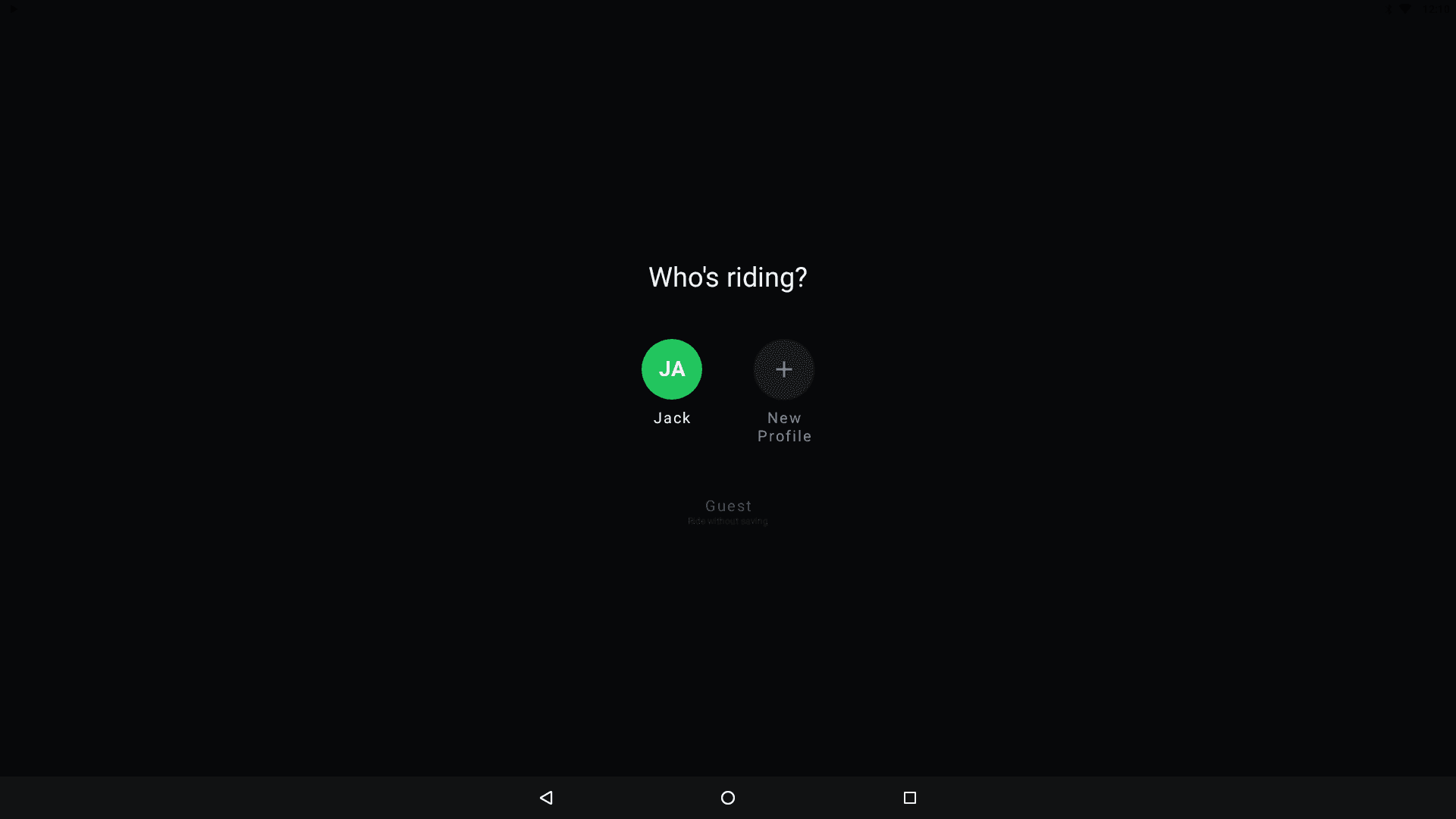
- Tap an existing profile to start with your ride history and settings
- Tap Guest to ride without saving — useful for quick sessions or visitors
See Profiles & Ride History for more on managing profiles.
Starting a Workout
- Select a profile (or Guest) from the profile picker.
- On the dashboard, tap ▶ START to begin broadcasting your machine's data over Bluetooth and Wi-Fi.
The status bar changes from ● Idle to ● Broadcasting, and the dashboard begins showing live metrics.
Quick Settings
Tap the gear icon (⚙️) in the top-right corner to open the Quick Settings panel, where you can toggle BLE FTMS, WiFi, System Overlay, and Fan controls without leaving the dashboard.
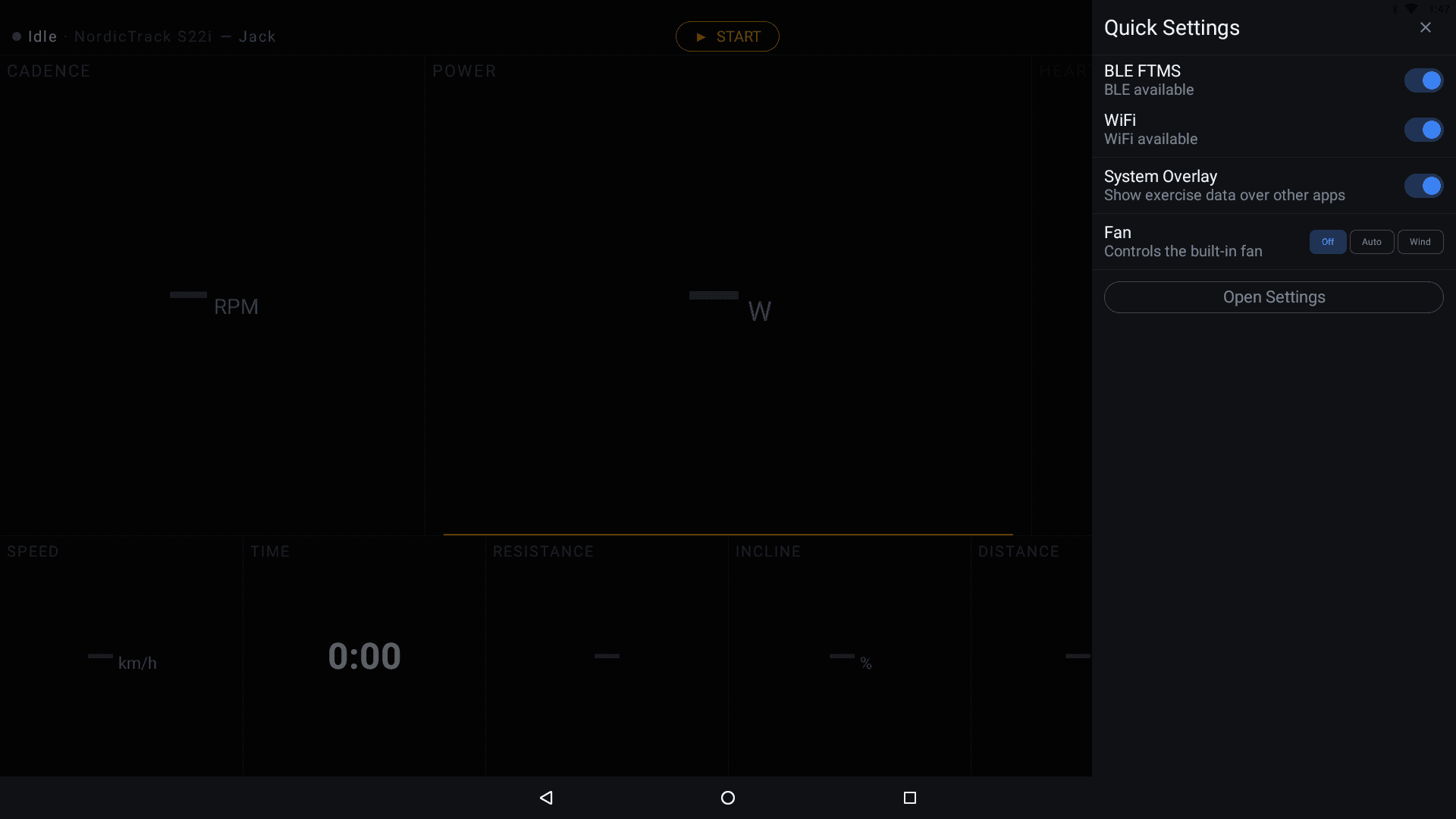
See the Settings guide for details on each toggle.
Dashboard Screen
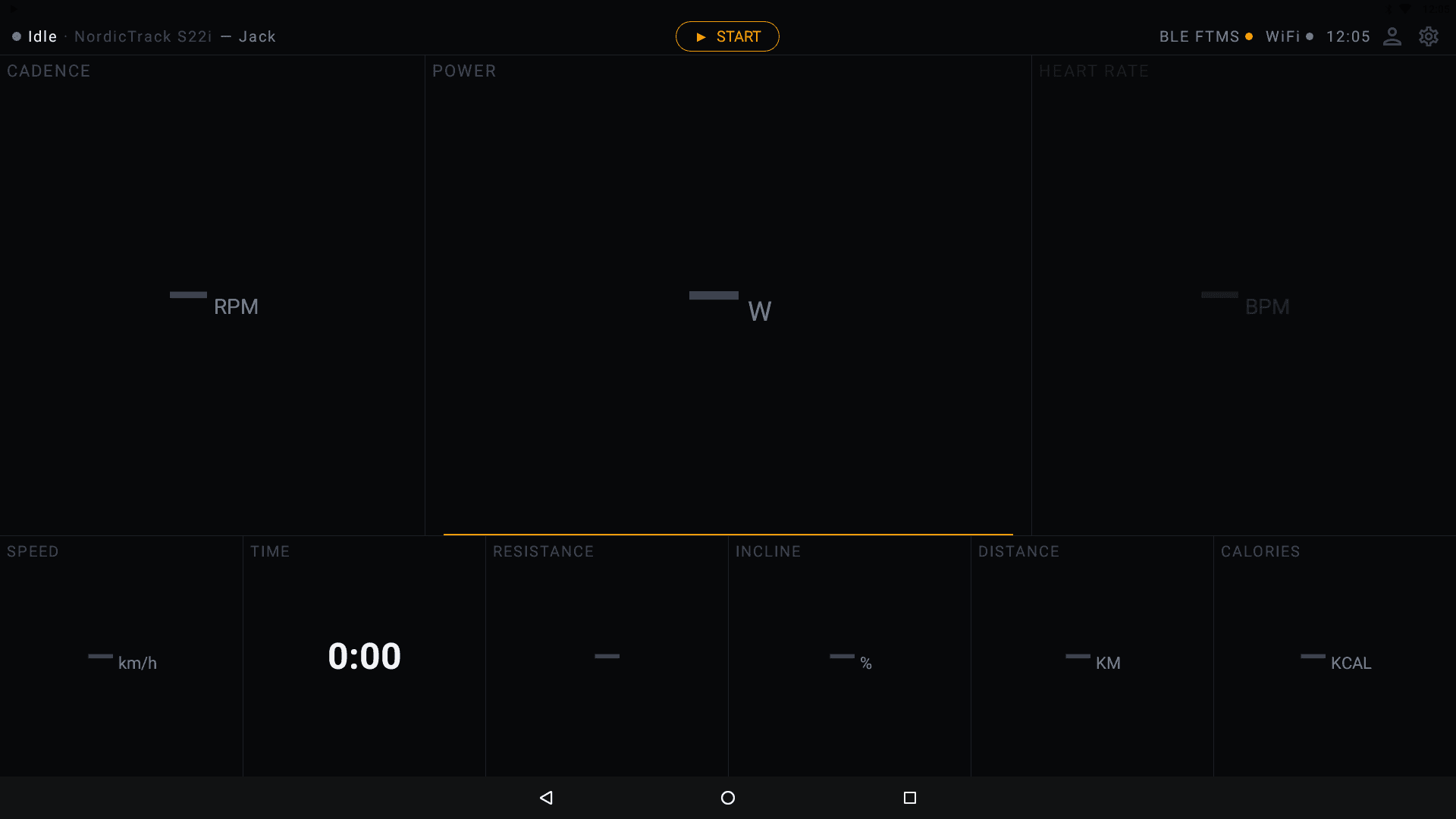
The Hyperborea dashboard displays a real-time metrics grid in two rows.
Top row (large):
- Cadence (RPM) — pedal or stride rate
- Power (W) — your current output
- Heart Rate (BPM) — from a paired Bluetooth monitor or console grip sensors
Bottom row:
- Speed — current speed (km/h or mph)
- Time — workout duration
- Resistance — current resistance level
- Incline — incline percentage
- Distance — total distance covered
- Calories — estimated calories burned
Not all metrics are available on every machine. The dashboard displays whatever data your console provides.
When a workout is active, the status bar shows ● Broadcasting along with the machine name and active profile. A control mode badge appears when a fitness app is controlling the trainer, showing the active target: ERG (target watts), SIM (target gradient %), RES (target resistance), or SPD (target speed). The ▶ START button is replaced by ‖ PAUSE and ■ STOP buttons.
When paused, the status shows ● Paused in amber, and the controls change to ▶ RESUME and ■ STOP.
Ending a Workout
Tap ■ STOP on the dashboard. If the workout is less than 60 seconds, the ride is automatically discarded. Otherwise, a "Stop workout?" dialog appears with the following options:
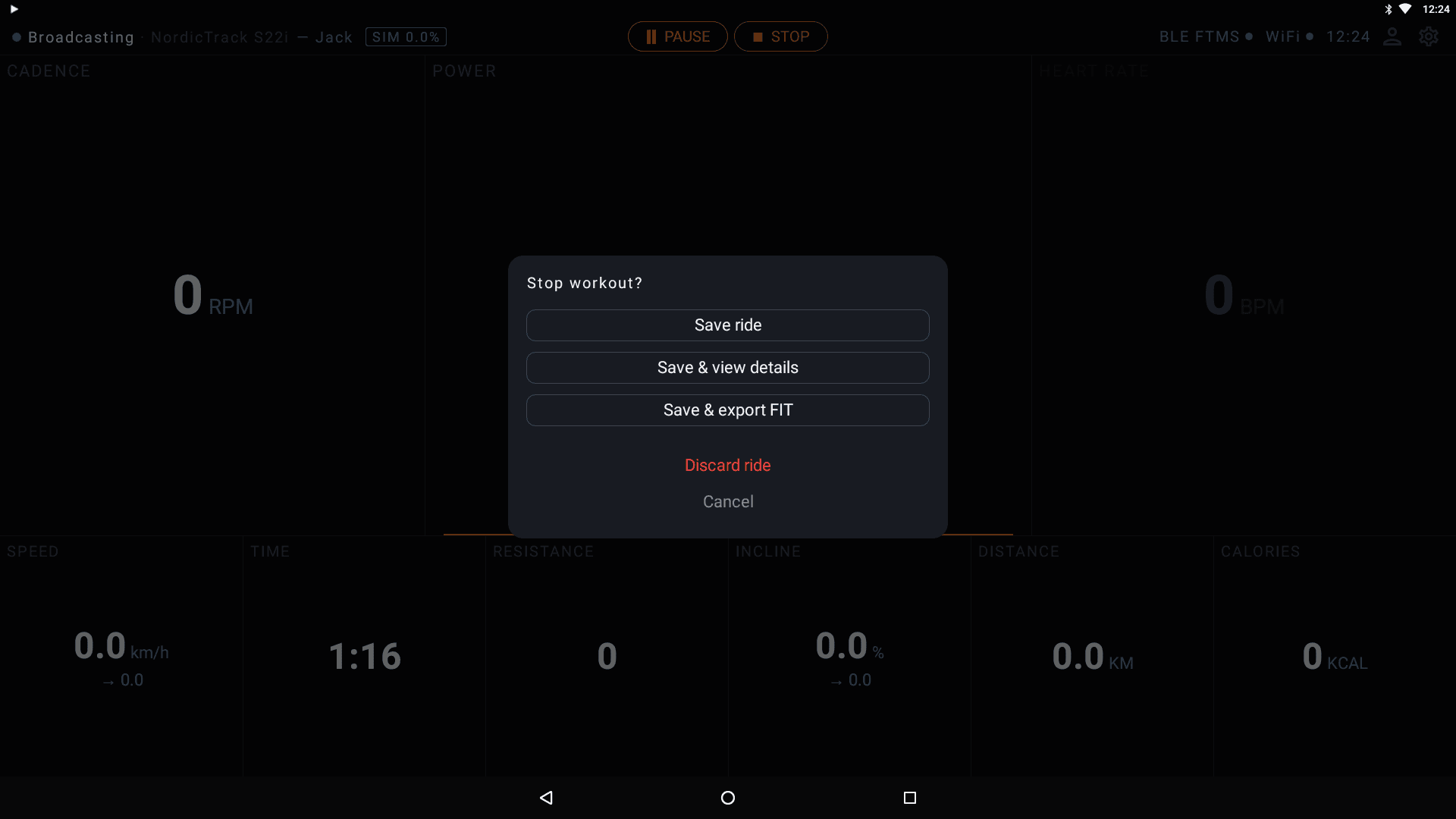
- Save ride — save the ride to your profile's history and return to the dashboard
- Save & view details — save and immediately open the ride detail screen
- Save & export FIT — save and export a FIT file (compatible with Strava, Garmin Connect, etc.)
- Discard ride — discard the ride data without saving
- Cancel — return to the active workout
Note: Guest mode rides are not associated with a profile and won't appear in ride history.
Next Steps
- Connecting Fitness Apps — use Hyperborea with Zwift, TrainerRoad, and other apps
- Profiles & Ride History — manage profiles, view ride details, and export FIT files
- Working with Sensors — pair a heart rate monitor and configure metrics